Why Linked Helper is harder to detect
Most tools ride inside your browser as an extension LinkedIn can scan for, or upload your session to run it from a datacenter IP — both are things LinkedIn’s systems look for. Linked Helper works the opposite way: a standalone desktop browser with no extension ID to scan, your real IP and fingerprint, and a session that never leaves your machine.
Adapted from Linked Helper’s support article “Is it safe to use Linked Helper? Is it detectable?” — screenshots are the article’s own.
The short version. Linked Helper’s own answer is that it’s safe, and that after the move to a standalone app it became extremely hard — if not impossible — to detect by technical means. Below is the architecture behind that claim, mapped to the three systems LinkedIn actually runs, plus the behavioural limits that are still partly on you.
Against LinkedIn’s three detection systems
The same three systems this checker is built around — and why none of them has a handle on a standalone app.
Probes chrome-extension://<id>/<file> for known extensions. Linked Helper has no Chrome Web Store ID and installs no extension files — there is no resource for the probe to hit.
Reasons 1–2Snapshots the LinkedIn page and scans it for injected extension nodes. Linked Helper injects nothing — every control sits in a separate window, so the snapshot is clean.
Reason 1Compares your API-request pattern to a real member’s. Linked Helper never calls the LinkedIn API — it clicks a real browser like a person, so the request map is the natural one.
Reason 3Plus the behavioural layer. LinkedIn also watches how much and how fast you act. Reasons 7–11 below are Linked Helper’s defaults for that — conservative limits and human-like pacing — and a quick read of how it works lives on BrowserGate’s teardown.
It isn’t an extension at all
The first version of Linked Helper was a Chrome extension — and that imposed exactly the limits LinkedIn now hunts for. Linked Helper 2 is a standalone desktop program, which removes the two extension-specific detection surfaces by design.
No code is injected into the LinkedIn page
Extensions get caught because they inject their UI and scripts straight into the LinkedIn tab. Linked Helper 2 is a separate program — the campaign queue, counters and controls all live in their own window, outside the page. When LinkedIn loads a Web Worker that quietly archives the page and ships it back for analysis, there are no injected extension elements in that snapshot to find.
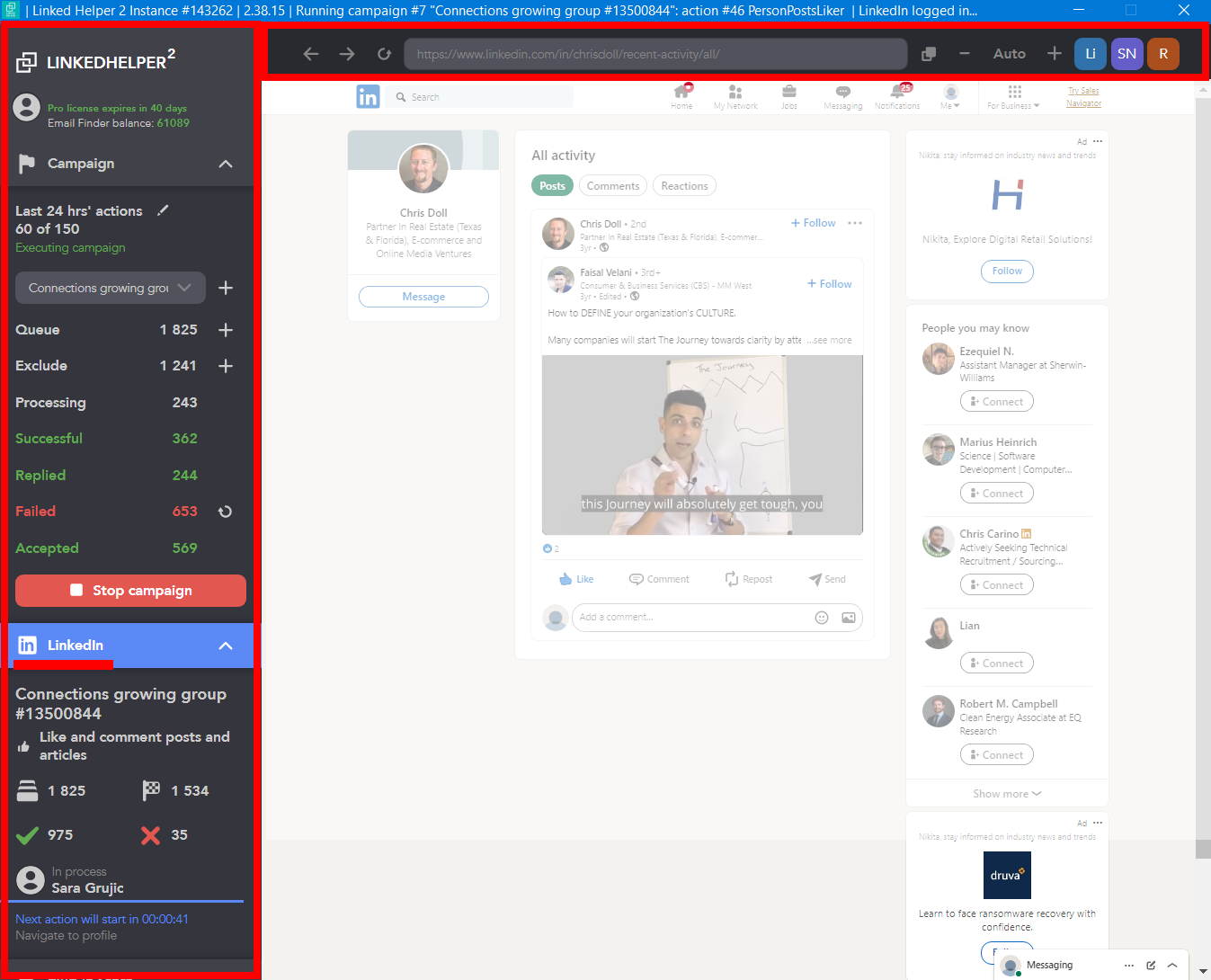
No permanent Chrome Web Store ID or files
When a Chrome extension installs, it drops files locally — an icon, images. LinkedIn checks for those by requesting resources tied to extension IDs it hasn’t approved; knowing an extension’s Store ID and its usual file list, it can tell whether you have it. Linked Helper is a browser in its own right: no Store ID, no extension files, nothing for that request to land on.
The LinkedIn API is not used
“Cloud” isn’t automatically safer. Tools that work through the LinkedIn API can be spotted by comparing their request pattern to what a real member’s browser produces — they replay only the handful of calls they need, so the map looks wrong. Linked Helper doesn’t touch the API: it runs on your PC as a smart browser, clicking buttons the way a person would.
Every account looks like its own machine
LinkedIn flags one browser juggling several accounts, or several accounts sharing one IP. Linked Helper keeps each account walled off.
Each instance gets a randomized fingerprint
As an extra layer, every LinkedIn instance generates its own random fingerprint, so two accounts opened on the same PC don’t look like they share a machine — from LinkedIn’s side they read as different devices.
Separate cache & cookies per account — and it logs you out if you cross them
Every account runs in its own instance with its own cache and cookies. If you try to sign a different account into an existing instance, Linked Helper logs you out rather than letting the sessions mix.
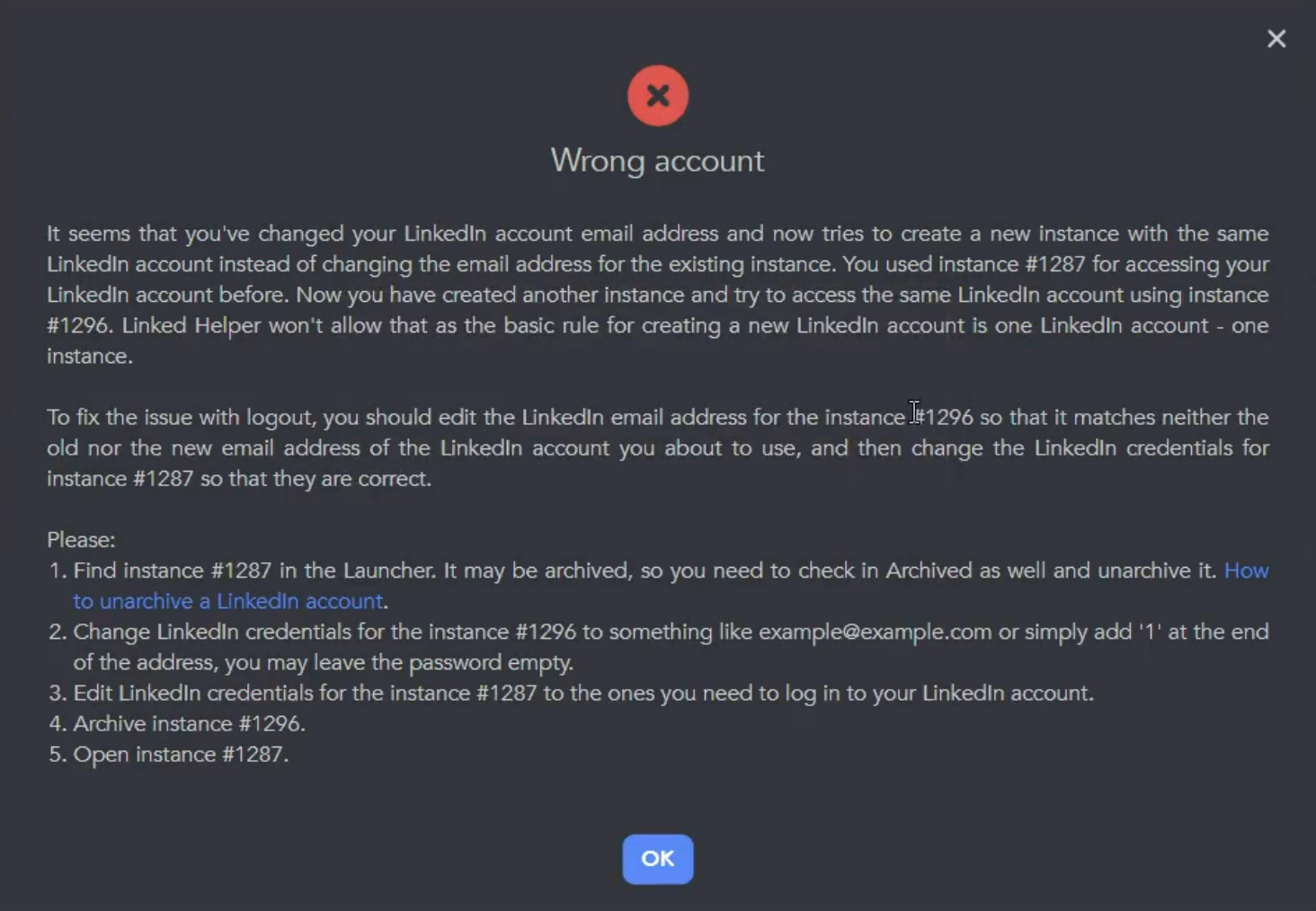
A separate IP address per instance
To avoid several accounts exiting from one IP, you can assign a separate proxy to each instance so every account has its own address. Because you bring your own proxy, the IP quality is in your hands — not pooled from a vendor’s datacenter range. (Proxies are purchased separately from any third-party provider.)
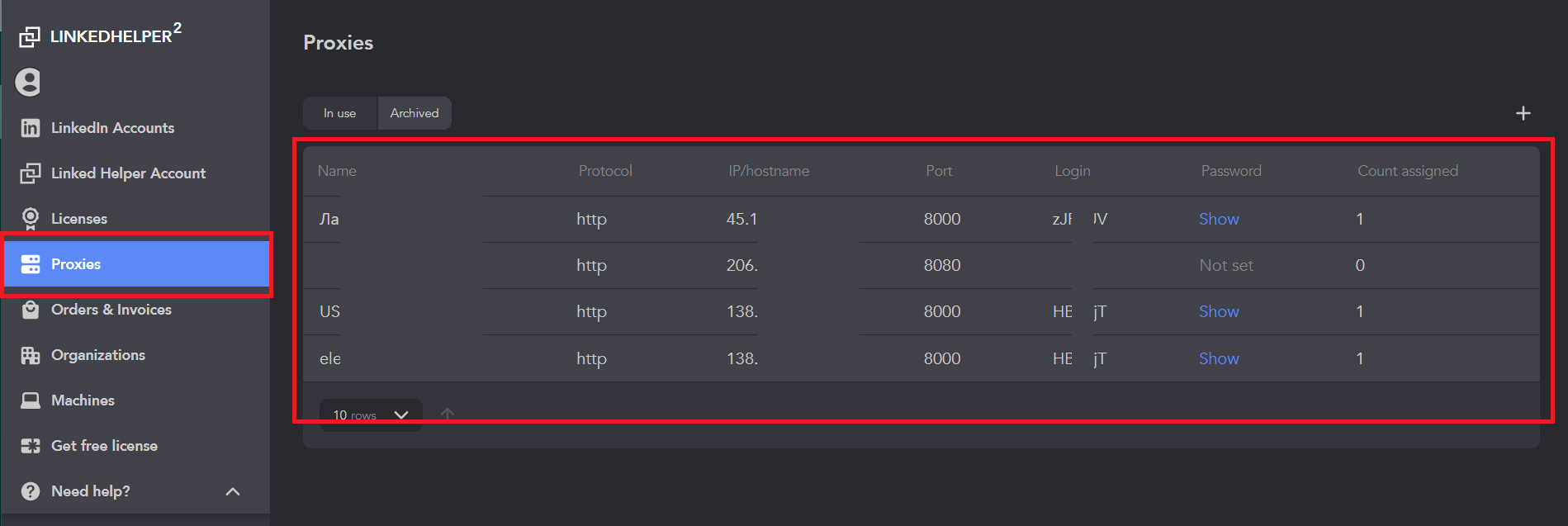
It paces itself like a person
Technical invisibility isn’t enough — LinkedIn also watches behaviour. Linked Helper ships conservative defaults that imitate a human and cap how much it does.
In-page navigation, not raw URLs
LinkedIn watches how profiles get opened — firing through direct URLs one after another is bot-like and can get you logged out. Linked Helper navigates inside the page like a person: it types a name into the search bar and clicks the right result.
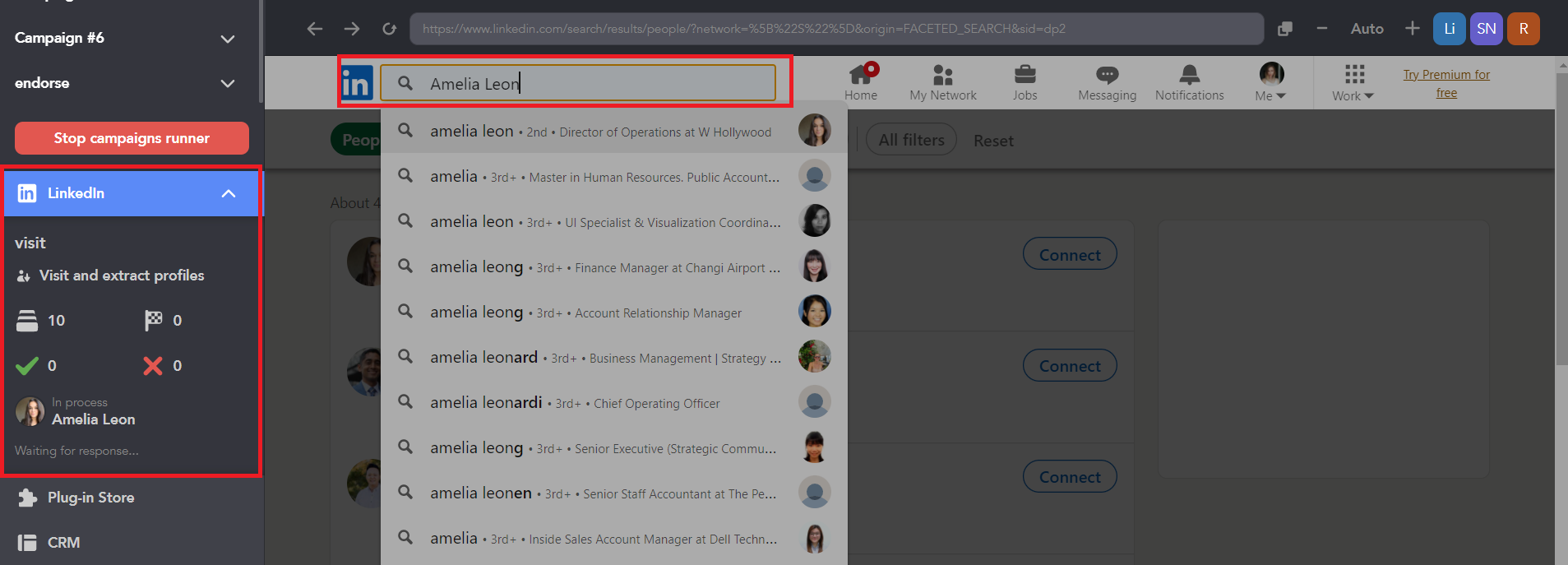
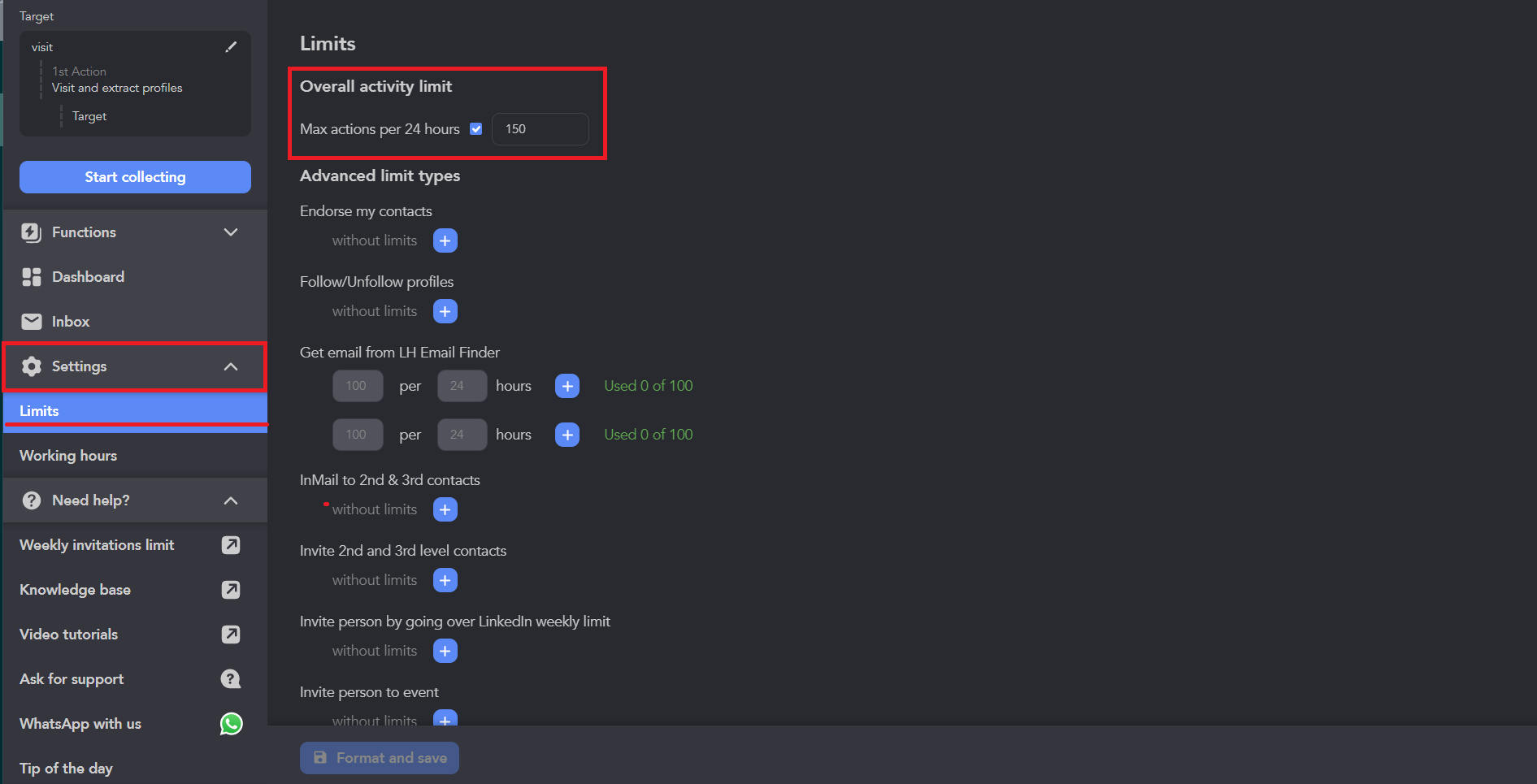
Daily limits across all campaigns
The recommended ceiling is about 150 actions a day across all campaigns, for an account older than a year. By default Linked Helper caps the rolling last-24-hours total — not the calendar day — so you can’t accidentally fire 300 actions in two hours around the moment a daily counter resets.
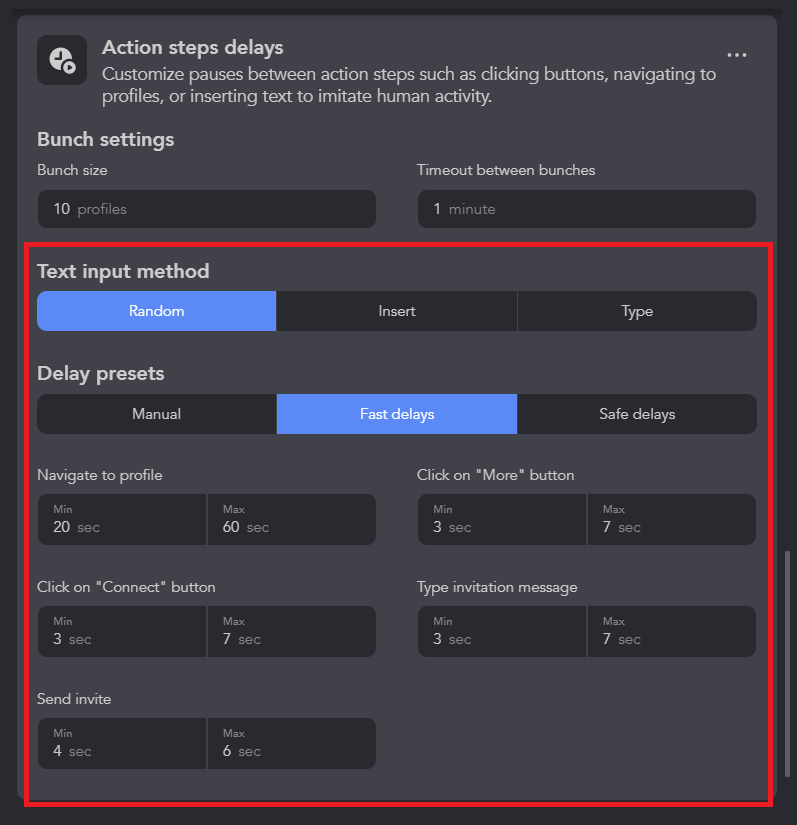
Randomized timeouts between every step
A real person never pauses for exactly the same number of seconds between each step. Linked Helper randomizes the gaps between visiting a profile, clicking Connect, typing a message and sending — and it can type templates out like a human. The Action steps delays plug-in exposes these, and a Safe-delays preset ships built-in.
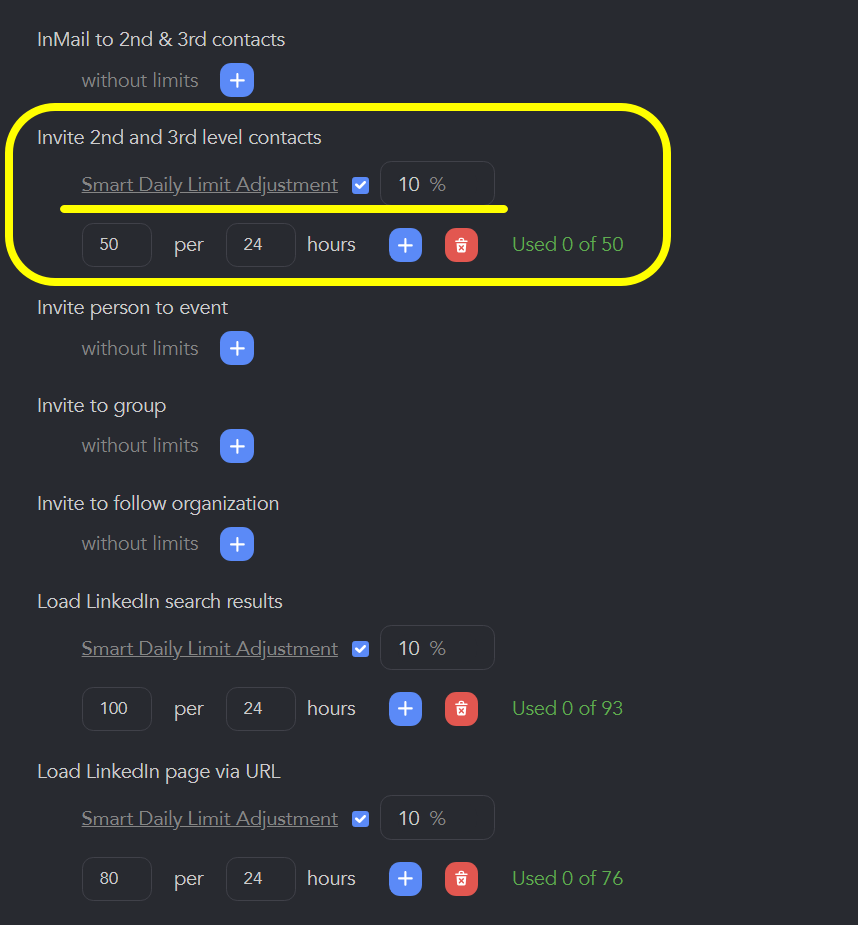
Randomized start times and daily counts
Starting at the exact same minute every day, with the exact same number of invites, looks robotic. Linked Helper randomizes campaign start times (when Working hours are set) and the daily count of invites, messages and other actions — Smart Daily Limit Adjustment nudges each limit by a percentage.
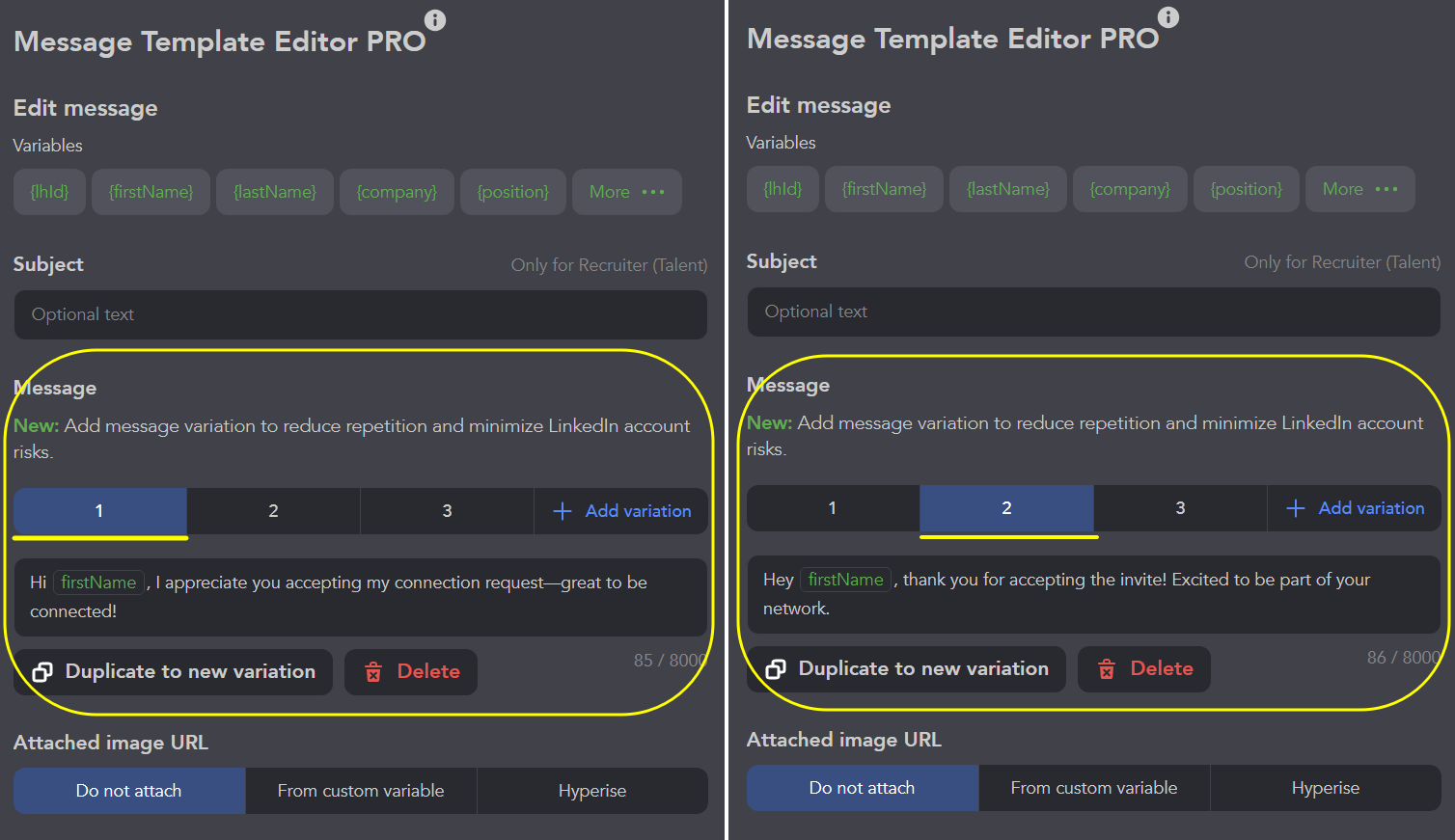
Message variations
Near-identical messages sent day after day are another tell. With message variations you rotate several versions of a message across one campaign, so your outreach doesn’t read as a single canned template.
The honest part: what’s still on you
Linked Helper closes the technical detection surfaces — but LinkedIn also runs behavioural analysis, and that part is partly in your hands. Linked Helper can’t police what you do in the account outside it, and it won’t stop you raising the default limits or timeouts (you can, though it’s not recommended). Manual users get flagged too: opening lots of profiles by pasting URLs, or signing in on several devices at once, can trigger a warning or logout on its own.
- Keep to the recommended daily limits (~150/day for an account over a year old).
- Use the Safe timeout preset — don’t crank the delays down.
- Navigate by search, not by pasting profile URLs.
- Don’t run the same account on several devices at once.
Want the other side of the comparison? See what the extensions and cloud tools actually do with your session in the deep-dive teardowns, or check any extension against LinkedIn’s detection list on the checker home.
Deep divesGet 20% off Linked Helper + a free trial.
The one tool we tore down that isn't a browser extension at all — so it leaves LinkedIn the smallest surface to detect.